
How to Send Training Course Reminders
Phin's platform automatically sends training course reminders every 7 days by default, adjustable at the company level, and also allows manual sending of reminders in bulk or individually, with emails sent from [email protected] or a custom domain if Google or Microsoft DMI integrations are enabled.
How to Send Training Course Reminders
Making sure your end-users complete their training is important. Sometimes a simple reminder can get that done.
Phin's platform has a few ways to send out course reminders. First and foremost, all training will automatically send out course reminders to users who have not completed their training. By default, reminders are sent every 7 days, but this interval can be adjusted at the company level. For more information on how reminders work and how to configure the interval, see How often are training reminders sent out?
If you're looking for a more manual approach to sending out course reminders, continue reading! We'll discuss how to send out course reminders in bulk and individually to specific users.
By default, all training reminders are sent from [email protected]. However, if your organization has the Google DMI or Microsoft DMI integration enabled, training reminder emails can be sent from a custom domain of your choice. For more information, refer to the sections called Enable a Custom Email Domain.
Bulk Reminders
Sending out reminders in bulk is a convenient way to ensure all your users are notified if they still need to complete their course.
Tourial

reCAPTCHA
Recaptcha requires verification.
protected by reCAPTCHA
To restart the video, Click Tourial and then Restart Tour.
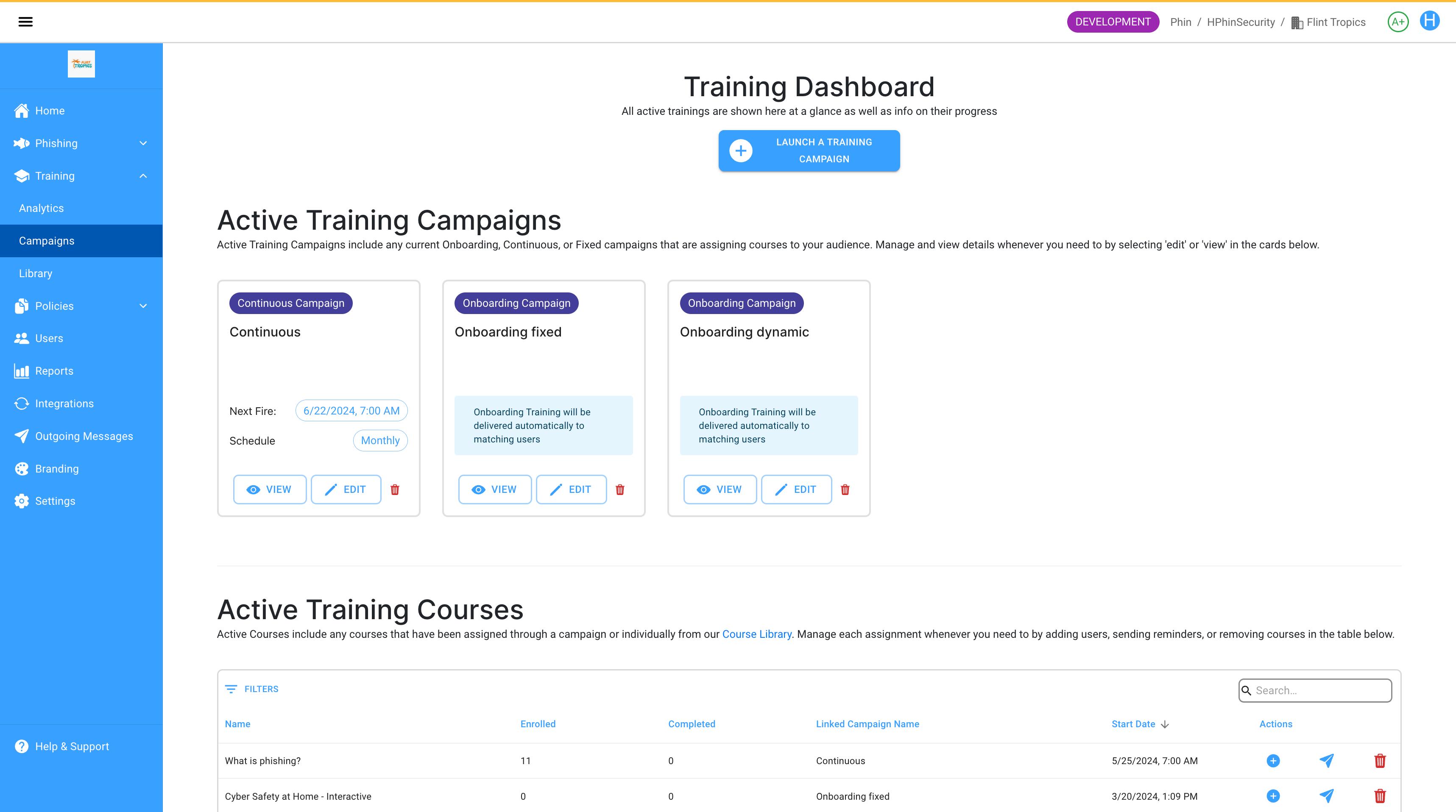
- 1.Start by clicking on Training in the left-hand menu. Once the drop-down menu appears, click on Campaigns.
- 2.Once at the dashboard, you will see your Active Training Campaigns and Active Courses.
- 3.Scroll down to Active Courses and hover over the course you'd like to send a reminder for.
- 4.You will see a blue chat bubble under the management options for this course.
- 5.After clicking the Send Course Notification button, you will see the following prompt.
- 6.Simply click Remind Users and all users in this training course will receive a course reminder.
Individual Reminders
Tourial
Start

reCAPTCHA
Recaptcha requires verification.
protected by reCAPTCHA
To restart the video, Click Tourial and then Restart Tour.
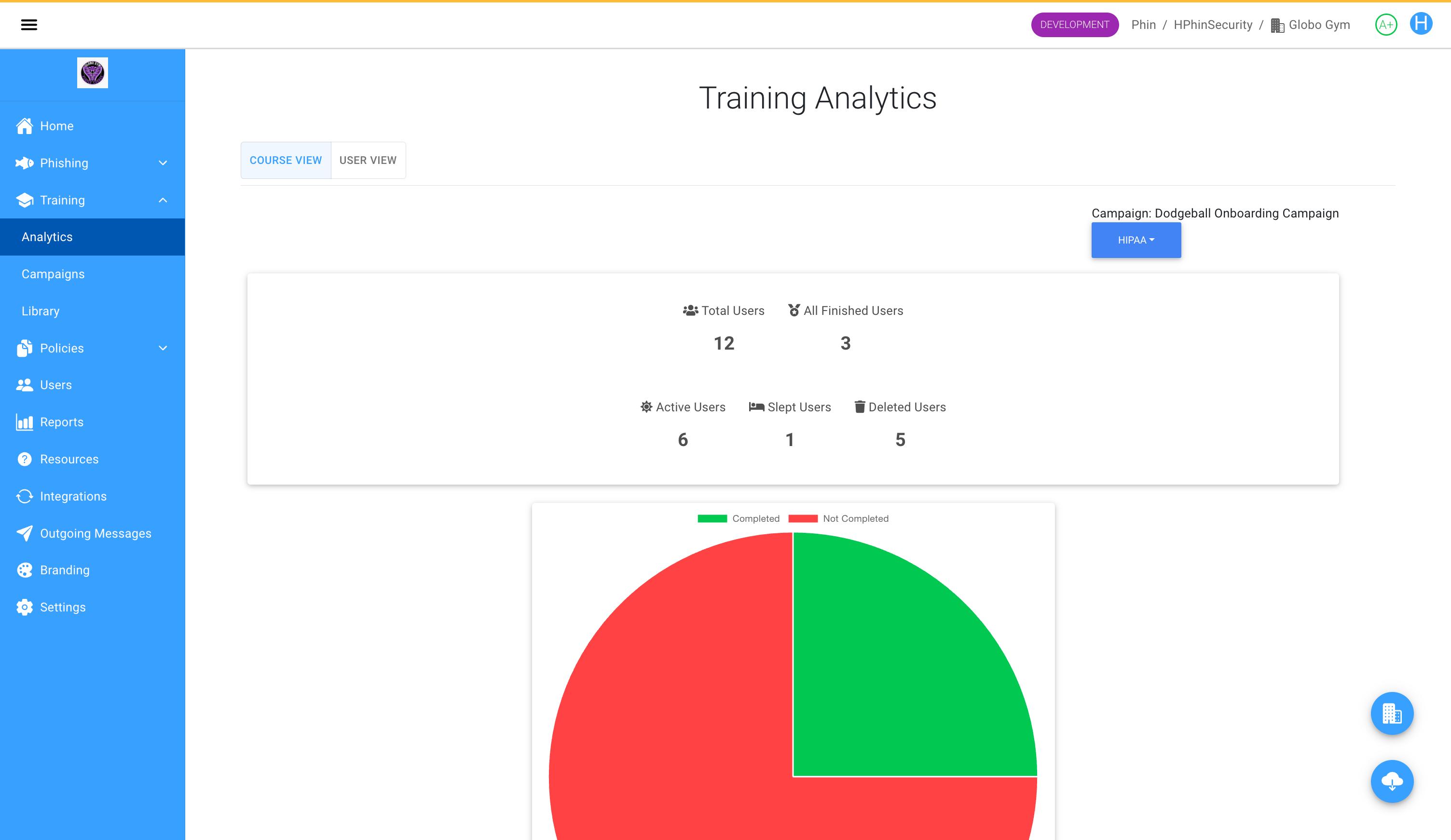
- 1.Click on Training on the left-hand menu.
- 2.Click on Analytics.
- 3.Select the course you'd like to send reminders for.
- 4.Scroll down to the list of users. Next to each user, you will see a Send Reminder option. Click it to immediately send that user a course reminder.
Note: There is no confirmation prompt when clicking "Send Reminder." The reminder will be sent immediately.
Was this article helpful?
YesNo